Overview
The Neural Web Effect generates a dynamic, network of lines connecting actors in your scene, mimicking a futuristic neural interface or data‑link aesthetic.
Installation
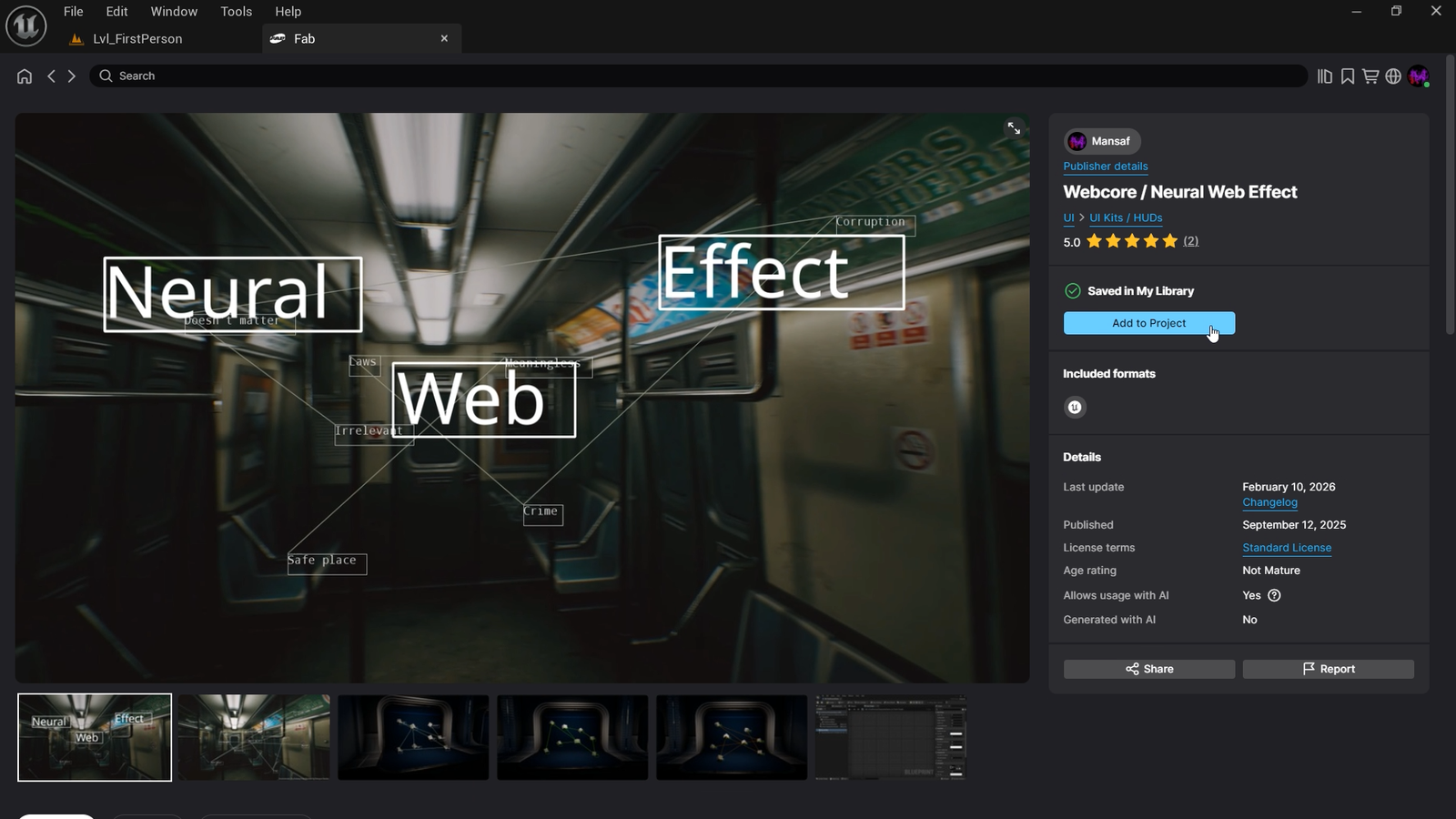
- Open the Fab Store, then search for Webcore/Neural Web Effect .
-
Click Add to Project.
-
Add Neural Web Component to your player character.
-
Tag Your Target Actors – For every actor you want to be part of the neural web, add the tag NW (or a custom tag you set in the component). Additionally, set the text you wish to display on that actor in Index 1 of the actor's target array (if applicable).
After these steps, the effect will be visible in your scene, connecting all actors with the specified tag.
Settings
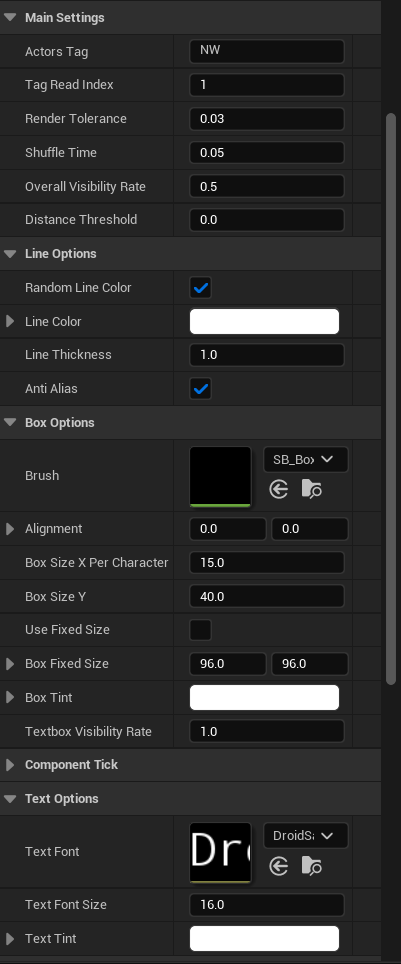
The Neural Web Component exposes several parameters to fine‑tune the look and performance of the effect. All settings are available in the component’s Details panel.
Main Settings
- Actors Tag – The tag used to identify target actors. Default is NW.
- Tag Read Index – Specifies which index of the actor's tag array holds the display text. If index 1 is already used for another purpose, you can change this to an alternative index. Default is 1.
- Render Tolerance – Duration (in seconds) the effect persists after the actor stops being rendered. Helps smooth out brief visibility drops. Default is 0.03.
- Shuffle Time – Interval (in seconds) between connection shuffles. Set to 0.0 to disable shuffling entirely. Default is 0.05.
- Overall Visibility Rate – How frequently the effect appears on the screen. Default is 0.5.
- Distance Threshold – Maximum distance from the actor to consider it part of the web. Actors farther than this value are ignored. Set to 0.0 to apply no distance limit. Default is 0.0.
Line Options
- Random Line Color – When enabled, each connection line is assigned a random color. When disabled, all lines use the color defined in Line Color. Default: disabled.
- Line Color – The base color of the web lines. Only effective when Random Line Color is disabled.
- Line Thickness – Width of the web lines. Default is 1.0.
- Anti Alias – When enabled, edges of the lines are smoothed. Default: enabled.
Box Options
- Brush – Brush asset (e.g., an image texture) used for the text box background. Leave empty to use the default box style.
- Alignment – Offset (X, Y) for positioning the text box relative to the actor's origin. Default is (0.0, 0.0).
- Box Size X Per Character – Horizontal scaling factor per character. Multiplied by the number of characters to determine the box width. Default is 15.0.
- Box Size Y – Fixed height of the text box. Default is 40.0.
- Use Fixed Size – When enabled, the text box uses a fixed size instead of scaling based on character count. Default: disabled.
- Box Fixed Size – Fixed dimensions (X, Y) for the text box when Use Fixed Size is enabled. Default is (96.0, 96.0).
- Box Tint – Color tint applied to the text box background.
- Textbox Visibility Rate – How frequently text boxes appear on the screen. Independent from Overall Visibility Rate. Default is 1.0.
Text Options
- Text Font – Font asset used for the text displayed above actors. Default is DroidSansMono.
- Text Font Size – Size of the text. Default is 16.0.
- Text Tint – Color tint applied to the text.
Tips
Static Lines
To prevent the web from changing or pulsating and keep it completely still, set the following parameters:
This locks the connections into a fixed, permanent mesh.
Multiple Effect Groups
You can create multiple independent neural webs in your scene. Simply add additional Neural Web Components to your player character. Each component uses a unique Actor Tag, applying the effect exclusively to actors carrying that specific tag.
Change Display Location on the Actor
By default, the effect originates from the actor's pivot point. If you want it to appear at a different location (e.g., at the actor's head or a specific socket), you can add a mesh actor (for example, a cube) as a child, scale it down to near zero, set Cast Shadows = False, and attach it to your main actor. Then use that cube as the target actor for the effect.
Notes
The system uses visibility checks (Was Recently Rendered) to determine if an actor is on screen before drawing its connections. This saves performance but comes with a specific edge case:
If a target actor is outside the viewport but its shadow is still visible inside the viewport, the Was Recently Rendered check may incorrectly return true. This causes the effect to erroneously appear in the upper‑left corner of the screen.
Solutions
As described in the "Change Display Location" tip, add a tiny actor (with Cast Shadows = False) attached to your main actor. Use this proxy as the target actor for the web effect. Since it doesn't cast shadows, the visibility check works flawlessly.
Alternatively, you can enable Ray Traced Shadows on your project or target actors. This resolves the shadow‑based visibility discrepancy entirely.
For best results, I recommend using the proxy actor approach, as it's simpler and doesn't require hardware‑raytracing support.
Changelog
- Initial release
- Turned this effect into an Actor Component. You can now simply add the component to your player character to enable the effect.
- New customization options:
- Line Color – Previously limited to two options (white or random). You can now choose any color you want.
- Actors Tag Customization – You can now define any tag for the actors you want to include in the effect, instead of being locked to the default "NW" tag.
- Tag Read Index – Previously, text was always read from tag index 1. You can now select which tag index should be displayed over the actors.
- Render Tolerance – Controls how long an affected actor remains included in the effect after it is no longer rendered on screen, such as when leaving the viewport or being occluded.
- Options added:
- Distance Threshold – Includes the target actor in the effect once it enters a specified range.
- Anti-Aliasing – Enables or disables line smoothing.
- Custom Brush – Allows you to use a brush other than the default box.
- Brush Alignment – Sets the pivot point of the brush.
- Fixed Size – Keeps the brush size unaffected by the word assigned to the target actor.